
Worried about data loss or site downtime? What if your site got locked due to a faulty plugin or theme? Backing up your WordPress site regularly is the solution.
This guide cuts through the noise to equip you with simple steps and trusted tools to backup your WordPress. In this comprehensive guide, we will walk you through easy steps and introduce you to top tools for effectively backing up your WordPress site.
We will discuss 3 popular methods of how to backup your WordPress site. These include plugins, manual backup method, and hosting.
Key Takeaways
Maintain regular WordPress backups to protect your data from loss due to unforeseen events—this ensures operational resilience and minimal downtime.
Explore your options: Utilize WordPress backup plugins for automation, perform manual backups for greater control, or leverage managed hosting services for convenience and reliability.
Implement best practices like optimizing backup frequency, choosing secure storage solutions, and regularly testing backups to guarantee a swift and successful site recovery when necessary.
The Importance of WordPress Backups
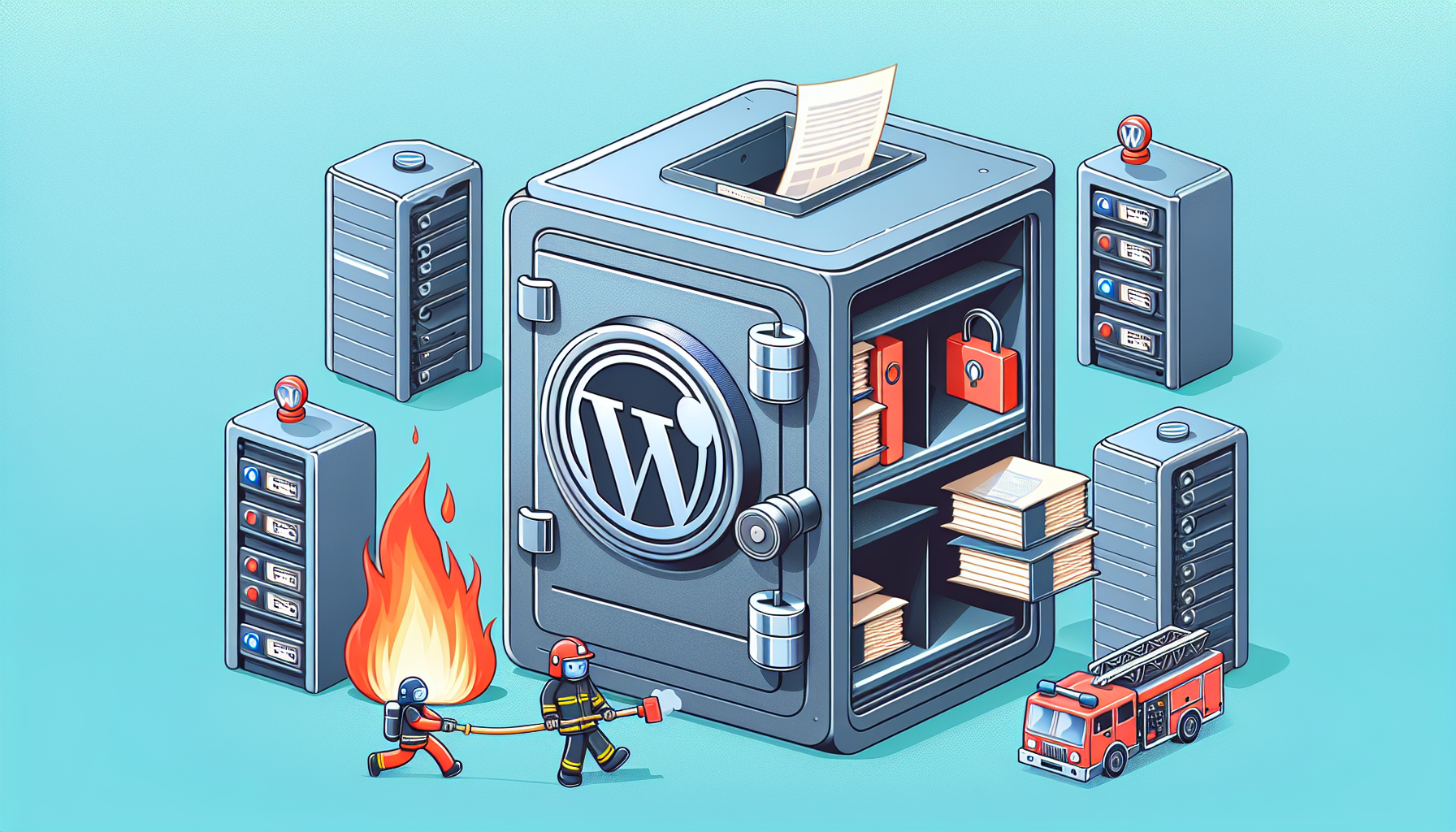
A WordPress backup is essentially a snapshot of your site’s content and data at a specific point in time. It includes everything – your posts, pages, comments, WordPress database, users, settings, themes, plugins, and even your SEO rankings.
Having a backup empowers you to restore a saved version of your site, duplicate your site, or move it to a new host, ensuring business continuity, data safety, and operational resilience.
You might wonder if your hosting provider’s backup services are sufficient. It’s worth noting, however, that while many hosting providers offer backup services, these may not always align with your specific needs or provide the reliability you require.
Therefore, having your own backup system gives you total control and peace of mind. Plus, if you’re using a WordPress backup plugin, you have the option to perform complete backups, schedule automatic backups, or even create backups manually for maximum flexibility.
Protecting Your Data
The importance of regular backups in preventing data loss can’t be overstated. Whether it’s due to hacking, server crashes, or human error, data loss can be devastating for any website owner. By having regular backups, you can quickly restore your site to its previous state, minimizing downtime and loss of revenue.
Regularly backing up your WordPress site is a key measure in preventing data loss. It is recommended to backup your site at least once a week to ensure that your data is safe.
It depends on the frequency of your site updates. If you update your site daily, then daily backups are a good idea. If you update your site less frequently, then weekly or monthly backups might suffice. The key is to ensure that your backup frequency matches your site update frequency.
Disaster Recovery
Another key aspect of WordPress backups is disaster recovery. It’s all about being prepared and ready to bounce back in the face of unexpected issues or disasters.
By having a backup for your WordPress site, you can swiftly restore your website to its previous state, ensuring smooth and secure site operations.
But where should you store your backups? It’s a good idea to store your backups in a separate location from your live site’s files. This way, even if there’s an issue with your live site’s hosting server, you can still restore your site.
Website Migration
Website migration also greatly benefits from the use of backups. If you’re planning to move your website to a new host or change your domain name, having a fresh backup of your site is paramount. It ensures a smooth transition and prevents any data loss during the migration process.
Remember, before making any major changes to your website, always make a fresh backup. This way, your recent updates and data will be preserved, setting the stage for a smooth migration.
Choosing the Right Backup Method for Your WordPress Site
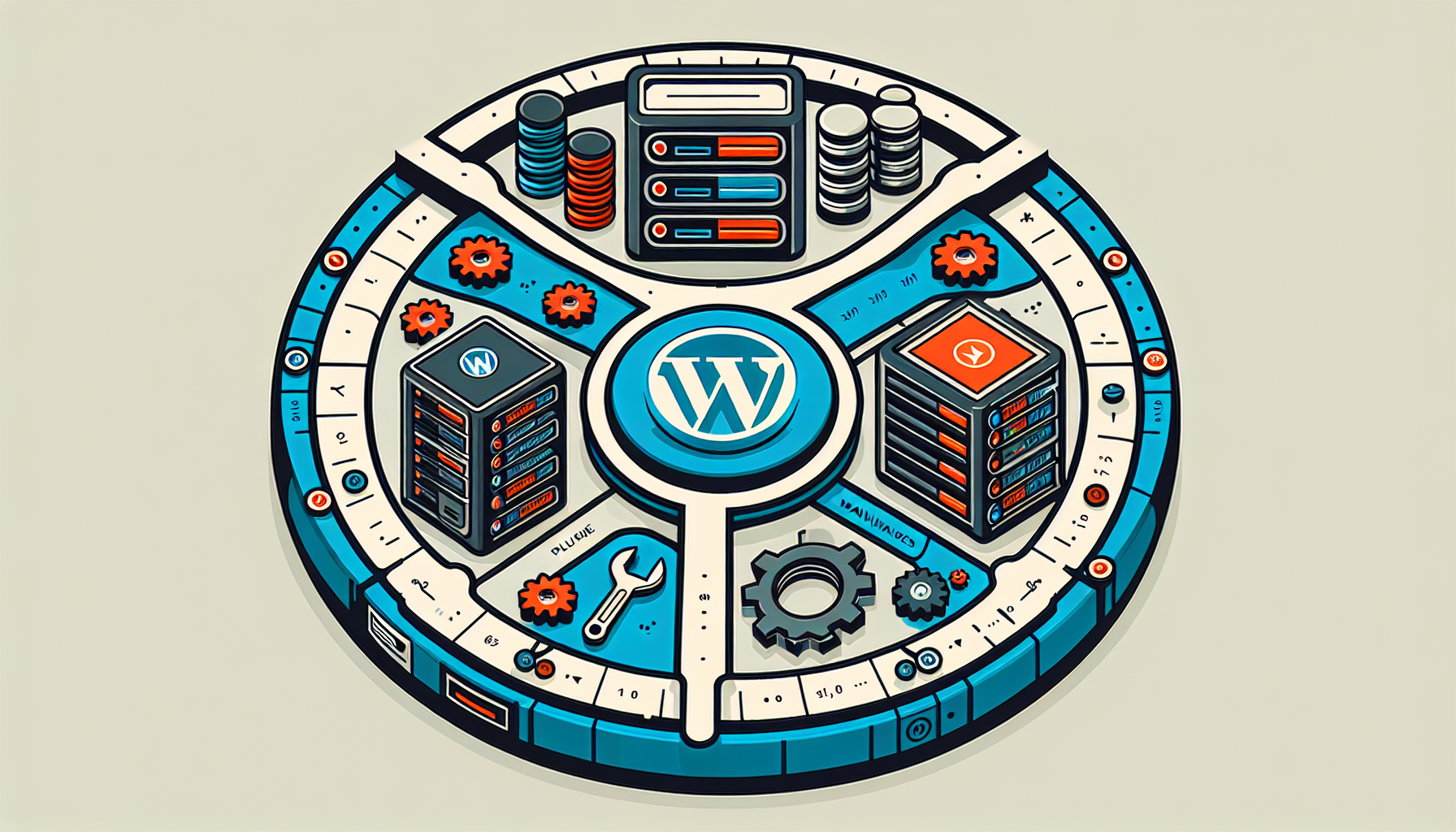
Now that we’ve underscored the significant role of WordPress backups, let’s explore the various methods available to back up your WordPress site. These include backup plugins, manual backups, and managed hosting services. Each of these methods has its own set of advantages and disadvantages. Understanding your specific needs and priorities will help you choose the backup method that aligns best with your requirements.
In your search for a WordPress backup plugin, prioritize features like:
Automated backups
Straightforward restore options
Diverse storage options
Robust security features
These are key factors to consider when making your choice. These features will ensure that your backup process is as smooth and efficient as possible.
Backup Plugins
Backup plugins are an easy and automated backup solution for your WordPress site. They offer a user-friendly interface and a set of features that make website backups a breeze. We recommend All-in-One WP Migration as the best backup and migration plugin for WordPress.
All-in-One WP Migration allows you to export your entire WordPress site, including the database, media files, plugins, and themes, into a single downloadable file. It is beginner-friendly and works with any hosting provider. You can also use it to migrate your site to a new host or restore from a backup with just a few clicks.
Manual Backups
Manual backups provide you with maximum control and flexibility over your backup process. While this method may be more time-consuming, it gives you the ability to manually backup your site exactly the way you want. You can choose to back up your entire site, or only specific files or databases, depending on your needs.
To perform a manual backup, you can use the cPanel Backup Wizard or FTP and phpMyAdmin. These tools allow you to copy your website files and database, ensuring you have a complete backup of your site.
However, it’s important to be mindful that this method can be susceptible to human error and requires more storage space, as manual backups are not incremental like some automated backups.
Managed Hosting Services
Managed hosting services offer another excellent option for backing up your WordPress site. Providers like Kinsta and Cloudways provide built-in backup tools and automated backup solutions as part of their hosting packages for WordPress sites.
These services offer incredible features like daily snapshots, extra hourly backups, and the option for automatic or downloadable backups. Plus, they offer the convenience of managing backups directly from your hosting dashboard, making the backup process as easy as clicking a button.
Top WordPress Backup Plugins
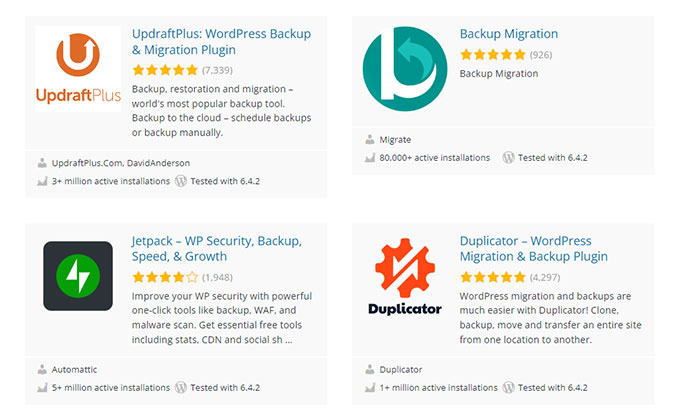
Having discussed the various backup methods, let’s now look at the best WordPress backup plugin in detail. All-in-One WP Migration is our top recommendation for its simplicity, reliability, and broad compatibility with virtually every hosting provider.
This plugin offers an intuitive interface and powerful features that make the backup and migration process effortless. Whether you need to create a full backup, migrate to a new host, or restore your site from a previous export, All-in-One WP Migration has you covered.
How to install the All-in-One WP Migration plugin on a WordPress website
All-in-One WP Migration is one of the most popular backup and migration plugins for WordPress, with over five million active installations. It allows you to export your entire site into a single file and restore or migrate it with ease.
The plugin offers features like:
- Full site export including database, media, plugins, and themes
- One-click import and restore
- Compatible with virtually every hosting provider
- Find and replace functionality for URLs during migration
- Cloud storage extensions available for Google Drive, Dropbox, Amazon S3, and more
Now, let’s install the plugin and learn how to backup your WordPress site in just a few minutes.
- Log in to your WordPress dashboard.
- Navigate to Plugins > Add New Plugin.
- Using the search bar, type All-in-One WP Migration.
- Click Install Now and wait for the installation to complete, then click Activate.
- After activation, navigate to All-in-One WP Migration > Export in the sidebar.
- Click Export To and select File to download a full backup of your site.
- The plugin will package your entire site (database, media, plugins, themes) into a single .wpress file.
- Once the export is complete, click the download link to save the backup file to your computer.
- To restore, go to All-in-One WP Migration > Import, drag and drop your .wpress file, and the plugin will handle the rest.
For cloud storage options, the plugin offers premium extensions for Google Drive, Dropbox, Amazon S3, OneDrive, and more. These allow you to export your backups directly to your preferred cloud service for added safety.
How to Backup WordPress Site Manually

Despite the convenience and user-friendliness of backup plugins, there might be instances when you desire greater control and adaptability in your backup process.
This is where manual backup methods come in. By using cPanel Backup Wizard or FTP and phpMyAdmin, you can create manual backups of your WordPress site.
These methods allow you to copy your website files and database, ensuring you have a complete backup of your site. Whether you need to back up your entire site or only specific backup files or databases, manual backups give you the flexibility to back up your site exactly the way you want.
cPanel Backup Wizard
The cPanel Backup Wizard is a simple tool that guides you through the process of creating full or partial backups of your WordPress site. With its step-by-step process, the cPanel Backup Wizard makes manual backups a breeze, while also providing access to your WordPress dashboard for easy management.
To create a full or partial backup, simply follow these steps:
- Log into cPanel.
- Navigate to the Backup Wizard under the Files section.
- Follow the prompts to select whether you want to back up your entire site or only specific files or databases, depending on your needs.
FTP and phpMyAdmin
Another method for manual backups is using FTP and phpMyAdmin. This method gives you more control and flexibility over your backup process, but it is a bit more complex than using the cPanel Backup Wizard.
To back up your site using FTP and phpMyAdmin, you’ll need to download all your site files via FTP and export your database through phpMyAdmin. This will give you a complete backup of your site, which you can store securely for future use.
Step 1. Backup your WordPress files manually using an FTP client.
First, download and install a file manager application like FileZilla or Transmit. In this example, we will show you how to download all your website files using FileZilla. Make sure to prepare your login credentials from a hosting account.
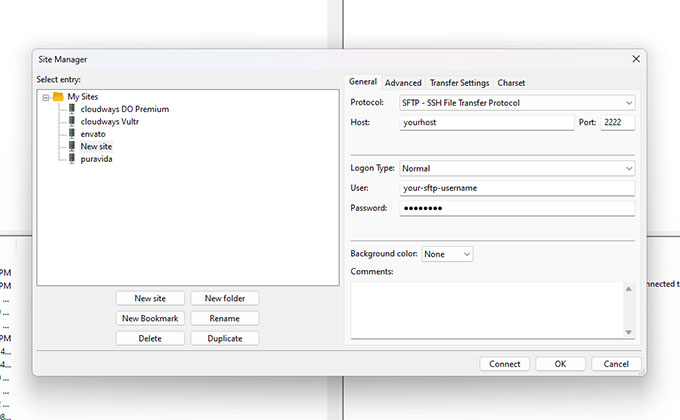
- In FileZilla navigate to File > Site Manager or press Ctrl + S your keyboard. This opens a pop-up where you can add your site. Enter your login credentials provided by your hosting provider. Click Connect.
Once the connection has been established, navigate to your WordPress installation folder. It varies from hosting to hosting, but usually, the folder named public_html is what you are looking for. In our example, this folder contains all the WordPress files including themes, plugins, and media files.
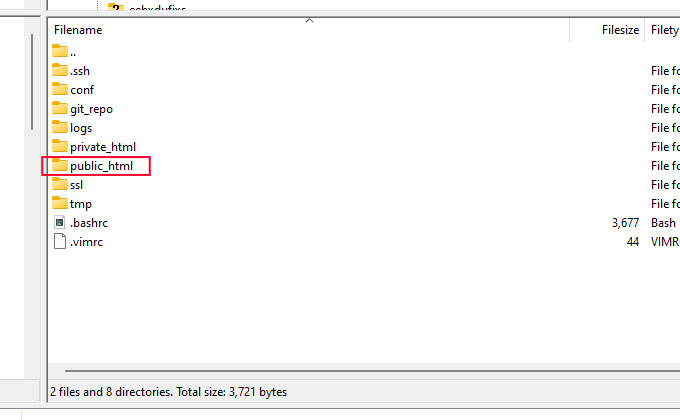
Before starting the download make sure to select the proper download location on the left side of the application which represents your local filesystem. Create a folder with a recognizable name and enter it.
Right-click on the public_html folder and click Download from the dropdown menu. This will start the download process into the folder that you’ve just created in the previous step.
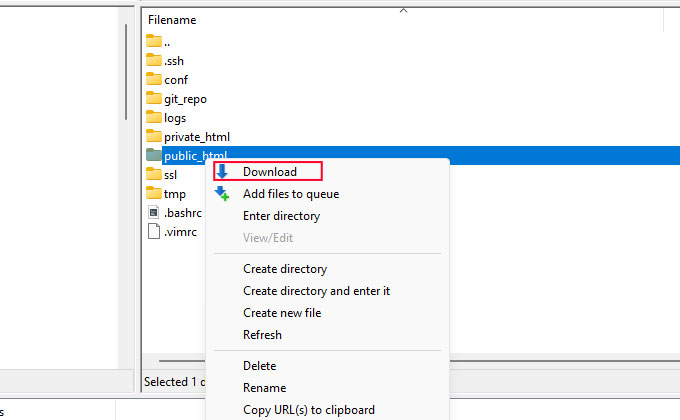
Once the download is completed proceed to the next step which is database backup.
Step 2. Backup your WordPress database manually from a hosting.
If you are using cPanel it offers a Backup Wizard tool which can be quite handy to backup an entire database. Another way to backup your database is by using the phpMyAdmin located under the Databases menu.
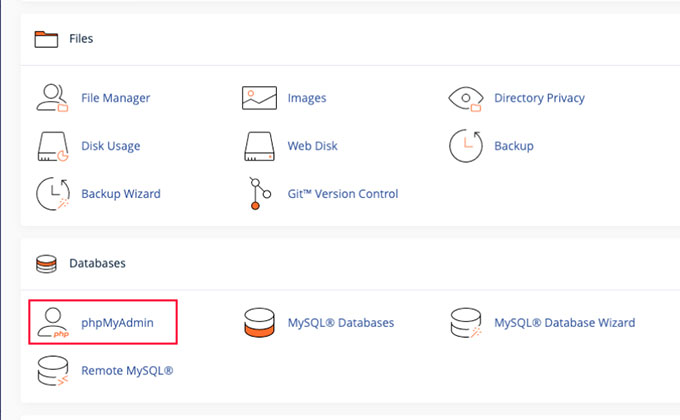
From phpMyAdmin main screen navigate to Databases menu. Select the database you want to backup.
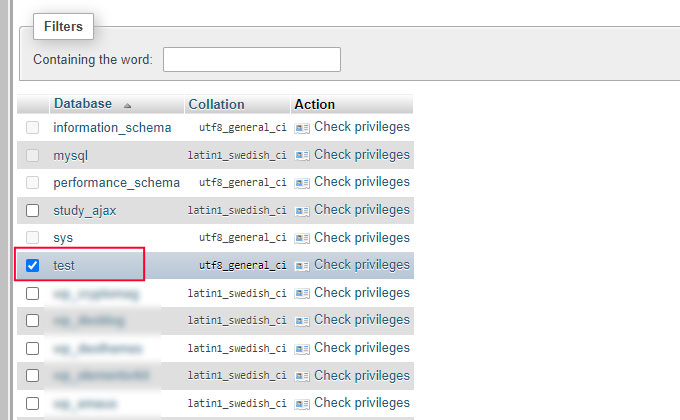
If you don’t know what is the name of your database, navigate to your WordPress installation folder using the FPT file manager (FileZilla) and locate the wp-config.php file. Open this file and look for the following line: define(‘DB_NAME’, ‘your_database_name’); That is your database name.
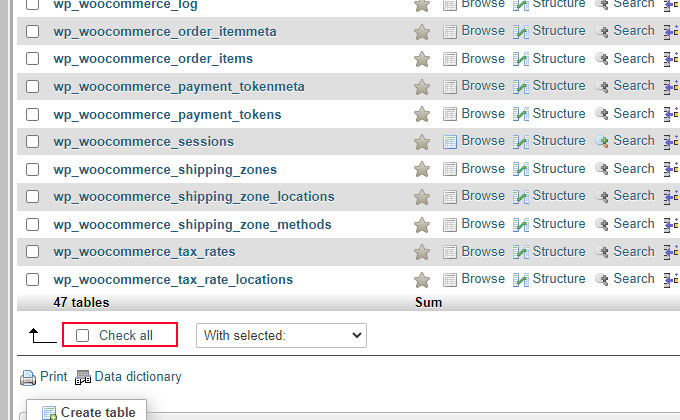
Next, click the database to open it and select all the tables you want to backup. If you scroll down you will see the Check all option.
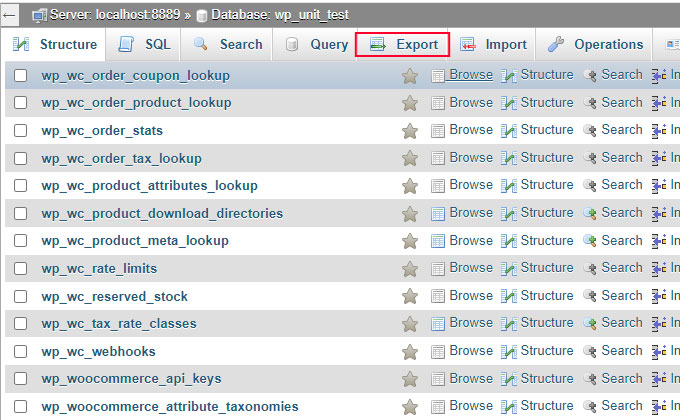
Next, click the Export menu. This will open a new page where you can select a format and export your database.
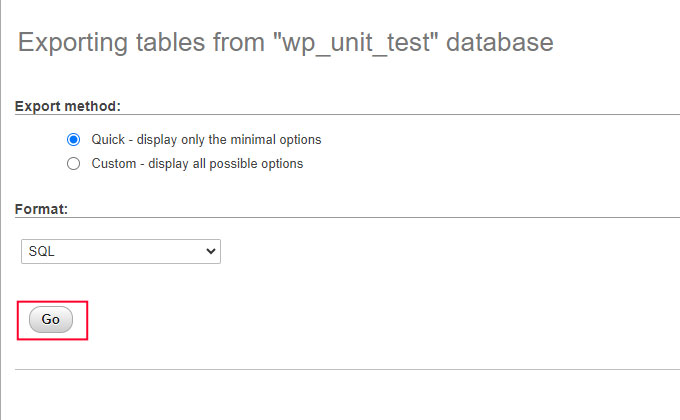
Click Go to download your database backup.
When storing your backups, make sure to organize them, and keep them in separate archives named by the date.
Managed WordPress Hosting Backup Solutions

For a comprehensive solution to backup a WordPress site, consider Managed WordPress hosting services for your WordPress website. Providers like Kinsta and Cloudways offer built-in backup tools and automated backup solutions, making the backup process as easy as clicking a button.
These services offer features like daily snapshots, extra hourly backups, and the option for automatic or downloadable backups. Plus, they offer the convenience of managing backups directly from your hosting dashboard, so you can focus on your website’s content and design rather than worrying about backups.
Kinsta
Kinsta is a managed WordPress hosting provider that offers a comprehensive backup solution for WordPress sites. With its daily backups, stored for 7 days, and an incredible hourly backup option called 6-Hour Backups, Kinsta ensures your site is always backed up.
In addition to its automatic backup solutions, Kinsta also offers a local development tool called DevKinsta. This tool allows you to test and develop websites locally before pushing them live, ensuring you always have a working version of your site.
Cloudways
Cloudways is another managed hosting provider that offers a robust backup solution for WordPress sites. With its customizable backup frequency and local download options, Cloudways gives you the flexibility to back up your site exactly the way you want.
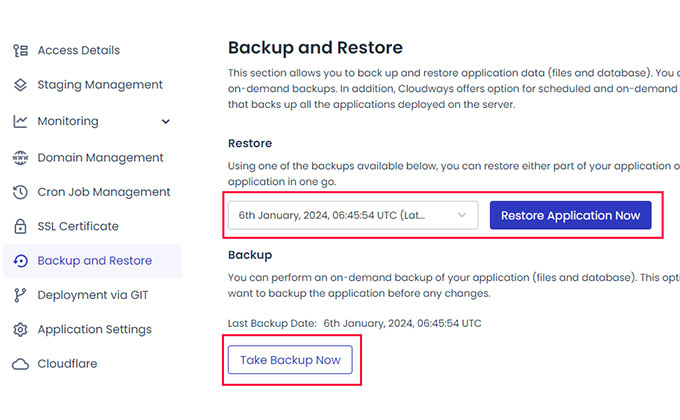
When navigating to your application hosted in Cloudways you will see the Backup & Restore menu which includes scheduled backups and restore feature. There is also an option to configure a Server-level backup.
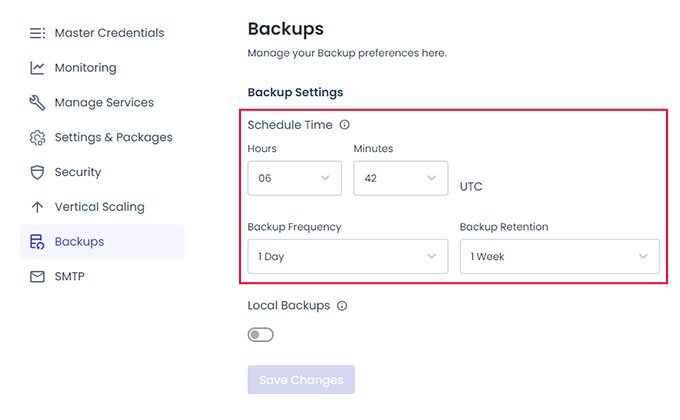
To update the frequency and schedule of backups navigate to your server and click Backups in the menu. You can also select the Local Backups option which will create an additional copy of your backup to your server folder (local_backups), so you can download it later.
Cloudways also offers a website cloning feature, which allows you to create a duplicate of your site for testing or development purposes. This feature makes it easy to test new features or designs without affecting your live site.
Best Practices for WordPress Backups
Having acquainted you with the various methods and tools for backing up a WordPress site, it’s time to highlight some key best practices. Following these guidelines will ensure you’re making the most of your backup system and keeping your site secure.
These best practices include ensuring optimal backup frequency, secure storage, and regular testing and verification of backups. By following these guidelines, you can keep your WordPress site safe and secure, no matter what happens.
Backup Frequency
The frequency of backups is a vital component of an effective backup system. How often you back up your site depends on how often you update your site. For most sites, a weekly backup is sufficient.
However, for sites that are updated frequently or that have a high amount of traffic, daily or even real-time backups may be required.
Remember, the goal is to ensure that you can restore your site to its most recent state in the event of a data loss. Therefore, your backup frequency should match your site update frequency.
If you’re updating your site daily, then daily backups are a good idea. If you update your site less frequently, then weekly or monthly backups might suffice.
Secure Storage
Another key component of an effective backup system is secure storage. Your backups are no good if they’re lost or damaged, so it’s crucial to store them in a safe and secure location. This could be a secure cloud server, like Amazon S3 or Google Drive, or an encrypted local storage device.
Remember, the goal is to keep your backups safe from theft or damage and to ensure that only you have access to them.
Therefore, always choose a storage location that offers high security and encryption options. This will ensure that your backups are safe and secure, no matter what happens.
Test and Verify Backups
Lastly, make sure to routinely test and validate your backups. This ensures that your backups are working correctly and can be restored if needed.
By restoring your backups to a testing site or staging environment, you can verify the completeness and integrity of the data, confirm that your backups function properly, and identify any potential issues.
Remember, the goal is to ensure that you can restore your site to its most recent state in the event of a data loss. Therefore, it’s crucial to regularly test and verify your backups. This will give you peace of mind and ensure that you’re always prepared, no matter what happens.
Summary
In conclusion, backing up your WordPress site is crucial for safeguarding your data, ensuring smooth disaster recovery, and facilitating website migration.
Whether you choose to use a backup plugin, manual backups, or managed hosting services, the key is to choose a method that meets your specific needs and priorities.
Our recommendation is to have multiple systems in place, so you’re prepared for any possible scenario. Having a WordPress backup plugin connected to your cloud storage service, and automatic backups configured in your hosting account will give you peace of mind while you sleep.
Remember to ensure optimal backup frequency, secure storage, and regular testing and verification of your backups. With a proper backup system in place, you can focus on growing your site, knowing that your hard work is always protected.
Frequently Asked Questions
How do I backup my local WordPress?
To backup your local WordPress, you can use the All-in-One WP Migration plugin to export your entire site as a single file. Then download the backup to your local drive or save it to a cloud service like Dropbox or Google Drive. This will ensure your WordPress site is securely backed up and easily accessible.
Does WordPress have built in backup?
No, WordPress does not have a built-in backup functionality, however, you can use a WordPress backup plugin like All-in-One WP Migration to create and schedule backups for added convenience. Making sure your data is backed up is crucial for its safety and your peace of mind.
How do I automatically backup my WordPress site?
To automatically backup your WordPress site, you can use All-in-One WP Migration, which is beginner-friendly and used by over 5,000,000 professionals. Install the plugin, go to All-in-One WP Migration > Export, choose your storage location, and set up regular exports to ensure consistent backups of your website.
How often should I backup my WordPress site?
It’s important to back up your WordPress site according to how often you update it. For most sites, a weekly backup is sufficient, but if your site is updated frequently or gets a lot of traffic, daily or real-time backups may be necessary.
Where should I store my backups?
Make sure to store your backups in a safe and secure location, such as a secure cloud server like Amazon S3 or Google Drive, or an encrypted local storage device. Ideally, you should have at least two or three copies stored in multiple locations. Your data’s safety is a top priority!
If you enjoyed this article check our other guides: