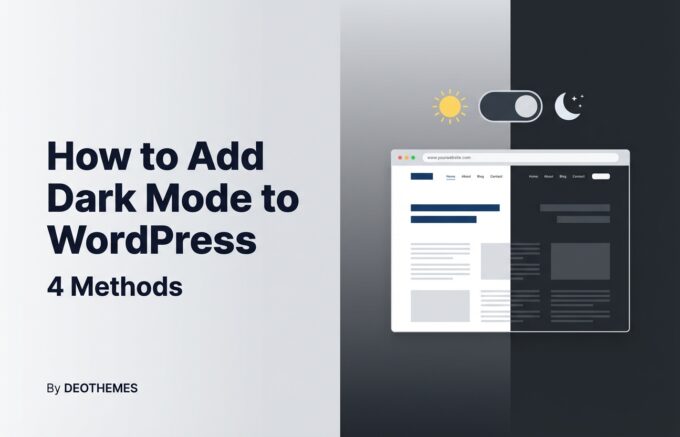
Dark mode has become one of the most requested features for websites in 2026. Studies show that over 80% of mobile users prefer dark mode, and visitors are more likely to stay on sites that offer it. Whether you want to improve accessibility, reduce eye strain for your visitors, or simply give your WordPress site a modern look, adding dark mode is easier than you think.
In this guide, we will walk you through 4 proven methods to add dark mode to your WordPress website. From simple plugin solutions to custom code, you will find the right approach for your skill level and needs.
What Is Dark Mode and Why Does It Matter?
Dark mode is a display setting that uses light-colored text, icons, and UI elements on a dark background. Instead of the traditional white or light background with dark text, dark mode reverses this pattern to create a darker viewing experience.
Here is why dark mode matters for your WordPress site:
- Reduced Eye Strain. Dark mode is easier on the eyes, especially in low-light environments. Visitors browsing your site at night will appreciate the option to switch.
- Better Accessibility. Some users with light sensitivity, migraines, or conditions like Irlen Syndrome find dark backgrounds significantly more comfortable to read. Offering dark mode makes your site more inclusive.
- Lower Battery Consumption. On devices with OLED or AMOLED screens, dark mode can reduce battery consumption by up to 60%. This is because dark pixels on these screens are essentially turned off.
- Modern User Experience. Major platforms like YouTube, Twitter, GitHub, and Slack all offer dark mode. Visitors increasingly expect this option on every website they visit.
- Lower Bounce Rates. Research suggests that websites offering dark mode see improved engagement metrics. When visitors are comfortable, they stay longer and browse more pages.
Comparing Dark Mode Methods for WordPress
Before diving into the step-by-step instructions, here is a quick comparison of all four methods to help you choose the right one:
| Method | Difficulty | Best For | Toggle Button | Elementor Support | Cost |
|---|---|---|---|---|---|
| Nocturne Plugin (Elementor) | Easy | Elementor users | Yes (widget) | Full | $29/year |
| WP Dark Mode Plugin | Easy | Any WordPress site | Yes (floating) | Basic | Free / $49+ |
| CSS Media Query | Medium | Developers, auto-detect only | No (auto) | Partial | Free |
| Custom CSS + JavaScript | Advanced | Full control, developers | Yes (custom) | Partial | Free |
Method 1: Add Dark Mode with Nocturne Plugin (Best for Elementor)
If your WordPress site is built with Elementor, Nocturne Dark Mode is the most powerful and flexible option. Unlike generic dark mode plugins that simply invert colors, Nocturne gives you full control over every element’s dark mode appearance directly within the Elementor editor.
Why Nocturne Stands Out
- Per-Element Control. Customize dark mode colors for individual widgets, sections, and containers. No blanket color inversion that breaks your design.
- Dark Mode Toggle Widget. Drag and drop a toggle switch anywhere on your site using Elementor. Customize the toggle’s size, colors, and position.
- Dark Mode Image Widget. Swap images automatically when dark mode is activated. Show a white logo in light mode and a dark logo in dark mode.
- System Preference Detection. Automatically detect your visitor’s OS dark mode setting and apply the matching theme.
- Customizer Integration. Configure default mode, color palette, and global settings from the WordPress Customizer.
- Lightweight Performance. Adds minimal overhead to your site. No JavaScript frameworks or heavy dependencies.
How to Set Up Nocturne
Step 1: Install the Plugin. Purchase and download Nocturne from the DeoThemes website. Go to Plugins > Add New > Upload Plugin in your WordPress dashboard, then upload the zip file and activate it.
Step 2: Configure Global Settings. Navigate to Appearance > Customize > Dark Mode. Here you can set the default mode (light or dark), choose whether to auto-detect system preferences, and configure global dark mode colors.
Step 3: Add the Toggle Widget. Open any page in the Elementor editor and search for the “Dark Mode Toggle” widget. Drag it into your header or navigation area. Customize the toggle’s appearance, including icon style, size, and colors for both modes.
Step 4: Customize Element Colors. Select any Elementor widget, section, or container. In the Style tab, you will find dark mode color options. Set specific background colors, text colors, and border colors for dark mode. This gives you pixel-perfect control over how every element looks.
Step 5: Handle Images and Logos. Use the “Dark Mode Image” widget to display different images based on the active mode. This is perfect for logos, illustrations, and any graphics that need different versions for light and dark backgrounds.
Step 6: Test and Preview. Use the toggle in the Elementor editor to preview your dark mode design. Check every page, especially forms, buttons, and images, to ensure everything looks great in both modes.
For a detailed walkthrough with screenshots, see our complete guide on how to add dark mode to Elementor.
Method 2: Add Dark Mode with WP Dark Mode Plugin (Any WordPress Site)
If you are not using Elementor, or if you want a quick universal solution, the WP Dark Mode plugin is a solid free option that works with any WordPress theme.
How to Set Up WP Dark Mode
Step 1: Go to Plugins > Add New in your WordPress dashboard. Search for “WP Dark Mode” and click Install Now, then Activate.
Step 2: Navigate to WP Dark Mode > Settings in your dashboard sidebar. Toggle the “Enable Frontend Dark Mode” switch to ON.
Step 3: Configure the floating switch style. Choose from multiple toggle button designs, set the position (bottom-right is the default), and customize colors.
Step 4: Under the “Switch Settings” tab, enable “Match OS Dark Mode” if you want the plugin to automatically detect your visitor’s system preferences.
Step 5: Save your settings and visit your site to test the dark mode toggle.
Pros: Free version available, works with any theme, easy setup, multiple toggle styles.
Cons: Limited customization in the free version. Uses algorithmic color inversion rather than per-element control, which can produce unexpected results on complex layouts. Advanced features require a premium license ($49+/year).
Method 3: Add Dark Mode with CSS Media Queries (Auto-Detect Only)
If you are comfortable with CSS, you can add automatic dark mode support using the prefers-color-scheme media query. This method detects your visitor’s operating system dark mode preference and applies matching styles automatically.
Important: This method does not include a toggle button. Dark mode activates automatically based on the visitor’s device settings. If you want a manual toggle, use Method 4 instead.
How to Add CSS Dark Mode
Step 1: Go to Appearance > Customize > Additional CSS in your WordPress dashboard (or use a child theme’s style.css).
Step 2: Add the following CSS code:
@media (prefers-color-scheme: dark) {
  body {
    background-color: #1a1a2e;
    color: #e0e0e0;
  }

  a {
    color: #64b5f6;
  }

  img {
    opacity: 0.9;
    transition: opacity 0.3s ease;
  }

  /* Adjust your header */
  .site-header {
    background-color: #16213e;
  }

  /* Adjust cards and content boxes */
  .entry-content,
  .wp-block-group {
    background-color: #0f3460;
    color: #e0e0e0;
  }

  /* Adjust buttons */
  .wp-block-button__link {
    background-color: #e94560;
  }
}
Step 3: Customize the color values to match your brand. Replace the hex codes above with your own dark mode color palette.
Step 4: Click Publish to save. Open your site on a device with dark mode enabled to test.
Pros: No plugins needed, zero JavaScript, instant loading, respects user system preferences.
Cons: No manual toggle for visitors. Requires CSS knowledge. You need to style every element individually, which can be time-consuming on complex sites.
Method 4: Add Dark Mode with Custom CSS and JavaScript (Full Control)
For developers who want complete control, you can build a dark mode toggle from scratch using CSS variables and a small JavaScript snippet. This method gives you a manual toggle button plus optional system preference detection.
Step 1: Define CSS Variables
Add this CSS to your child theme’s style.css or via Appearance > Customize > Additional CSS:
:root {
  --bg-primary: #ffffff;
  --bg-secondary: #f5f5f5;
  --text-primary: #333333;
  --text-secondary: #666666;
  --accent: #0073aa;
  --border: #e0e0e0;
}

body.dark-mode {
  --bg-primary: #1a1a2e;
  --bg-secondary: #16213e;
  --text-primary: #e0e0e0;
  --text-secondary: #b0b0b0;
  --accent: #64b5f6;
  --border: #2a2a4a;
}

body {
  background-color: var(--bg-primary);
  color: var(--text-primary);
  transition: background-color 0.3s ease, color 0.3s ease;
}

a {
  color: var(--accent);
}

.site-header,
.site-footer {
  background-color: var(--bg-secondary);
  border-color: var(--border);
}
Step 2: Add the Toggle Button
Add this JavaScript to your child theme or via a code snippets plugin. This creates a toggle that remembers the visitor’s preference using localStorage:
document.addEventListener('DOMContentLoaded', function() {
  const toggle = document.createElement('button');
  toggle.id = 'dark-mode-toggle';
  toggle.innerHTML = '☾';
  toggle.setAttribute('aria-label', 'Toggle dark mode');
  document.body.appendChild(toggle);

  // Check saved preference or system setting
  const savedMode = localStorage.getItem('darkMode');
  const prefersDark = window.matchMedia(
    '(prefers-color-scheme: dark)'
  ).matches;

  if (savedMode === 'enabled' || (!savedMode && prefersDark)) {
    document.body.classList.add('dark-mode');
  }

  toggle.addEventListener('click', function() {
    document.body.classList.toggle('dark-mode');
    const isDark = document.body.classList.contains('dark-mode');
    localStorage.setItem('darkMode', isDark ? 'enabled' : 'disabled');
  });
});
Step 3: Style the Toggle Button
Add styling for the floating toggle button:
#dark-mode-toggle {
  position: fixed;
  bottom: 20px;
  right: 20px;
  width: 50px;
  height: 50px;
  border-radius: 50%;
  border: none;
  background-color: var(--text-primary);
  color: var(--bg-primary);
  font-size: 24px;
  cursor: pointer;
  z-index: 9999;
  transition: transform 0.2s ease;
}

#dark-mode-toggle:hover {
  transform: scale(1.1);
}
Pros: Full control over every aspect. No plugin dependencies. Lightweight. Includes both manual toggle and system detection. Free.
Cons: Requires coding knowledge. You must manually style every element for dark mode. More maintenance work when you update your theme or add new content.
Dark Mode Best Practices
No matter which method you choose, follow these best practices to ensure your dark mode looks professional and works well:
1. Do Not Simply Invert Colors
Using CSS filter: invert(100%) is tempting but produces poor results. Images become negatives, brand colors shift, and the overall appearance looks unpolished. Instead, define specific dark mode colors for each element.
2. Use Dark Gray Instead of Pure Black
Pure black (#000000) backgrounds with pure white (#FFFFFF) text create too much contrast and cause eye strain. Instead, use dark grays like #1a1a2e or #121212 for backgrounds and slightly off-white colors like #e0e0e0 for text. Google’s Material Design guidelines recommend this approach.
3. Handle Images and Logos
Logos with transparent backgrounds on light mode may disappear on dark backgrounds. Prepare alternative versions of your logo and key graphics for dark mode. The Nocturne plugin handles this automatically with its Dark Mode Image widget.
4. Maintain Sufficient Contrast
Follow WCAG 2.1 accessibility guidelines. Text should have a minimum contrast ratio of 4.5:1 against its background for normal text and 3:1 for large text. Use tools like the WebAIM Contrast Checker to verify your color choices.
5. Remember User Preferences
Always save the visitor’s dark mode choice using localStorage or cookies. Nothing is more frustrating than toggling dark mode on every page load. Both Nocturne and WP Dark Mode handle this automatically.
6. Test Across Devices
Dark mode can look different on various screens. Test on desktop monitors, laptops, tablets, and phones. Check both OLED and LCD screens if possible, as colors render differently on each type.
How to Enable Dark Mode in WordPress Admin
WordPress also supports dark mode for the admin dashboard. This is separate from your site’s frontend dark mode and only affects what you see when logged in.
Built-in Admin Color Schemes: Go to Users > Your Profile and look for the “Admin Color Scheme” option. WordPress includes several built-in color schemes. While none are true dark mode, options like “Midnight” and “Coffee” offer darker interfaces.
Block Editor Dark Mode: In the WordPress block editor (Gutenberg), click the three-dot menu in the top-right corner, select Preferences, then Interface. You can enable “Dark background” to use a darker canvas while editing content.
Dark Mode for WooCommerce Stores
If you run a WooCommerce store, dark mode requires extra attention. Product images, price displays, and the checkout flow all need to work seamlessly in both modes.
- Product Images. Use product photos with transparent or neutral backgrounds that work on both light and dark surfaces.
- Price and CTA Buttons. Ensure your “Add to Cart” buttons and pricing text maintain high contrast and visibility in dark mode.
- Checkout Forms. Form fields with white backgrounds on a dark page look jarring. Style your checkout form inputs to match the dark theme.
- Payment Gateway Badges. Visa, Mastercard, and PayPal logos may need dark-mode-friendly versions or a subtle background container.
For WooCommerce stores built with Elementor, Nocturne lets you style each WooCommerce widget individually in dark mode, giving you full control over the shopping experience.
Which Method Should You Choose?
- Elementor users who want pixel-perfect control: Use Nocturne Dark Mode. It integrates directly into the Elementor editor and lets you customize every element’s dark mode appearance.
- Non-Elementor sites that want a quick solution: Use WP Dark Mode. It works with any theme and takes minutes to set up.
- Developers who want auto-detection only: Use the CSS media query method (Method 3). It is the lightest solution with zero JavaScript.
- Developers who want full control with a toggle: Use the custom CSS + JavaScript method (Method 4). It gives you complete flexibility with no plugin overhead.
Frequently Asked Questions
Does dark mode affect SEO?
Dark mode itself does not directly affect SEO rankings. Google crawls and indexes your content regardless of the display mode. However, dark mode can indirectly improve SEO by reducing bounce rates and increasing time on site, both of which are positive engagement signals.
Will dark mode slow down my WordPress site?
Plugin-based dark mode solutions add a small amount of CSS and JavaScript to your site, but the impact on loading speed is minimal. CSS-only methods (Method 3) add zero JavaScript overhead. Nocturne is built for performance and adds minimal file size to your Elementor site.
Can I add dark mode to WordPress without a plugin?
Yes, you can add dark mode to WordPress without a plugin using CSS media queries (to auto-detect system preferences) or custom CSS variables with JavaScript (to add a manual toggle). Methods 3 and 4 in this guide show you exactly how to do it with code examples.
What is the best dark mode plugin for WordPress?
For Elementor websites, Nocturne Dark Mode is the best option because it offers per-element color control directly within the Elementor editor. For non-Elementor sites, WP Dark Mode is a popular free plugin that works with any WordPress theme.
Does dark mode work with WooCommerce?
Yes, dark mode works with WooCommerce, but you need to pay extra attention to product images, checkout forms, and payment badges. Nocturne offers per-widget dark mode styling for WooCommerce elements built with Elementor.
How do I test dark mode on my WordPress site?
To test dark mode, enable dark mode in your operating system settings (System Preferences on Mac, Settings on Windows/Android/iOS) and visit your site. For manual toggle testing, simply click the dark mode toggle button. Test on multiple devices and browsers to ensure consistent appearance.
Can visitors choose between light and dark mode?
Yes, with plugin-based methods (Nocturne or WP Dark Mode) and the custom JavaScript method (Method 4), visitors get a toggle button to switch between light and dark mode. Their preference is saved so it persists across page loads and visits.
Should I make dark mode the default on my WordPress site?
For most websites, light mode should remain the default because it matches user expectations for standard web browsing. However, you can enable auto-detection to respect your visitor’s system preference. If their device is set to dark mode, your site will automatically switch.
Conclusion
Adding dark mode to your WordPress site is no longer optional. It is a feature that visitors expect and one that improves accessibility, user experience, and engagement. Whether you choose a plugin like Nocturne for Elementor or implement it with custom code, the key is to do it thoughtfully. Avoid simple color inversions, maintain proper contrast ratios, and always save user preferences.
For Elementor users, Nocturne gives you the most control with the least effort. For everyone else, the methods in this guide cover every skill level from beginner to advanced developer.
If you enjoyed this guide, check out our other WordPress tutorials: