

WordPress Full Site Editing (FSE) is a block-based editing system that lets you customize every part of your website, including headers, footers, templates, and global styles, all from a single visual interface. Introduced in WordPress 5.8 and significantly matured through versions 6.0 to 6.7, FSE eliminates the need for page builder plugins by giving you complete design control using the built-in Site Editor.
This guide covers everything you need to know about Full Site Editing: what it is, how to access and use the Site Editor, how to customize templates, navigation, global styles, and blocks, plus tips for transitioning from a classic theme to a block theme.
Table of Contents
Key Takeaways
- Full Site Editing (FSE) lets you customize your entire WordPress site, including headers, footers, templates, and global styles, using the block editor. No page builder plugin required.
- To use FSE, activate a block theme (like Ona) and navigate to Appearance > Editor. You need WordPress 6.0 or later for the best experience.
- FSE has matured significantly through WordPress 6.0 to 6.7, adding features like global styles, style variations, the Font Library, fluid typography, and improved template editing. It is the future of WordPress site building.
- Block themes use a theme.json file for styling and HTML-based templates, replacing the PHP-based approach of classic themes. This makes designs faster, more consistent, and easier to maintain.
FSE vs Classic Editing at a Glance
Not sure whether Full Site Editing or a classic theme setup is right for you? Here is a quick comparison to help you decide.
| Feature | Full Site Editing | Classic Themes |
|---|---|---|
| Editing Scope | Entire site (headers, footers, templates, pages) | Content area only; header/footer via Customizer or code |
| Required Tools | Built-in Site Editor (no plugins needed) | Customizer + often a page builder plugin |
| Template Control | Create and edit templates visually with blocks | Requires PHP template files and coding knowledge |
| Global Styles | Centralized style panel for colors, fonts, spacing | Scattered across Customizer options and CSS |
| Learning Curve | Moderate (new interface, but visual and intuitive) | Moderate to high (Customizer + PHP for advanced changes) |
| Best For | New sites, modern designs, users who want full control without code | Existing sites with heavy plugin dependencies or custom PHP |
The Fundamentals of WordPress Full Site Editing

Full Site Editing is a set of WordPress features that lets you modify your entire website using blocks, simplifying the customization process. WordPress 5.9 introduced the first block theme (Twenty Twenty-Two), and since then FSE has matured rapidly. WordPress 6.0 through 6.7 brought major improvements including style variations, the revamped Site Editor interface, the Font Library (6.5), fluid typography (6.1), and better template management.
The adoption of FSE by the WordPress community has been growing steadily, with users appreciating its visual approach and the wide array of customization options it offers. If you are building a new site today, FSE with a block theme is the recommended approach.
First, let’s answer the question: what is full site editing?
What Is Full Site Editing (FSE)?
In simple words, Full Site Editing, or FSE for short, is the WordPress block editor interface where you can edit all parts of your website. It is sometimes referred to as the “Site Editor” in the WordPress dashboard.
With Full Site Editing it is now possible to edit your header, footer, or any other template part all from a single place, eliminating the need to navigate between multiple admin pages.
The objective of FSE is to give you complete control over your site’s appearance and function, offering a more unified and seamless approach to designing and customizing your WordPress website. You no longer need a separate page builder plugin to achieve professional layouts.
Advantages of Full Site Editing in WordPress
Site editing in WordPress has seen a progressive evolution, transitioning from the Classic Editor to Gutenberg, and currently to Full Site Editing.
Unlike its predecessors, FSE brings WordPress closer to the functionality of a page builder, offering a depth of customization not previously possible.
1. Unified interface.
There is no need to jump from one admin screen to another. Edit your template parts, templates, pages, styles, and blocks from one place. I remember times when I was spending tons of hours just editing button styles, switching to theme options saving changes, and previewing them on the front-end. With Full Site Editing, you can see changes instantly so it’s a huge time saver.
2. Quicker editing process
It’s easy to get started, just open the editor under the Appearance menu and start editing. You can customize not just individual blocks, but also the entire layout and structure of your site, giving you more flexibility. You can easily update templates, template parts like header and footer, pages, and styles, making it easier to manage and maintain your website.
3. Global editing
To keep your brand styles consistent across your entire website you can edit global styles like colors and typography from the editor. Full site editing also brings a new feature called Style Variations. These pre-defined color palettes and typography variations can give your website a completely different look and enhance your website appearance.
How to start using Full Site Editing
The features of FSE are easily accessible. You simply need to:
- Activate a full site editing theme.
- Navigate to the Appearance -> Editor from the WordPress dashboard.
- Access templates for different parts of your site by clicking the WordPress logo in the top-left corner.
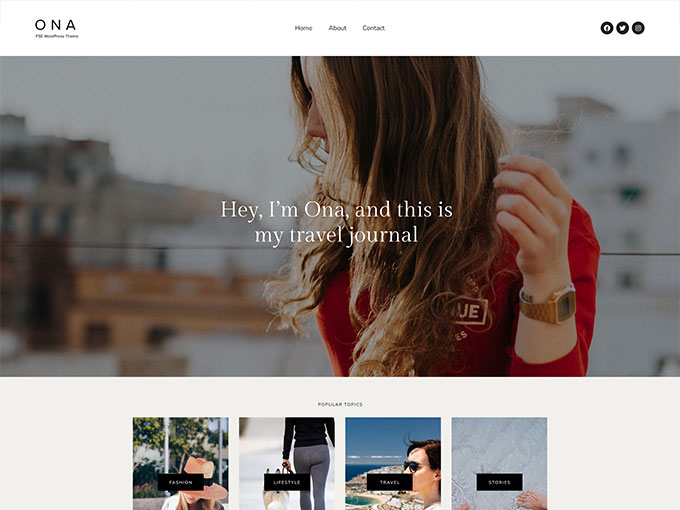
FSE continues to improve with every WordPress release. Each update from 6.0 through 6.7 has brought refinements to the editor interface, new blocks, and better performance. Keeping your WordPress installation up to date ensures you get the latest FSE features and bug fixes.
Understanding Block Themes and Template Parts
Block themes are WordPress themes built entirely from blocks. They usually include folders with templates and template parts and theme.json files that contain all the global styling for a theme.
FSE heavily relies on components like block themes and template parts. Block themes enable the creation of templates entirely through blocks, providing a more unified and seamless approach to designing and customizing your WordPress website.
Template parts, on the other hand, are customizable elements that can be used across multiple pages and templates, such as headers.
You can modify existing blocks within a template, create and edit templates, and insert patterns to adjust your theme layout.
How to edit your WordPress Site with FSE

First, install and activate a block theme and navigate to Appearance -> Editor. From here you can:
- Tweak headers and footers
- Edit navigation menus
- Modify posts and pages
- Create or edit templates
This section will walk you through personalizing various elements of your WordPress site with FSE.
How to customize Headers and Footers with FSE
FSE makes it easy to customize key website components like headers and footers. You can create and personalize your website’s header and footer using a template part block to create global sections for your site.
To get started, once you’re in the editor click on the template on the right side and click on the header area. The area highlighted with the violet border represents your header template part.

Let’s update your logo first. Simply click on the logo block, or in some cases it’s a site title block, and edit it. Once you finish, click Save and preview the changes.
And don’t worry about messing up the template as you can always revert it to the default state. When editing templates and template parts WordPress saves them as a copy of the original template.
To customize the footer you can do the same but instead click on the footer template.
How to edit Navigation in Full Site Editor
Optimizing your navigation menu can greatly enhance the user experience on your website. FSE allows you to edit your navigation menu using the Navigation block, replacing the traditional menu system.
You can easily add content to your menu like links to specific posts or pages that you wish to highlight in your navigation, and even create dropdown menus for a more organized look.
Some users find it difficult to work with the new navigation block and prefer classic menus instead. The good news is that it’s very easy to achieve that. All you need is to register your nav menus with the function. You can copy the code snippet below and add it to your child theme or insert it with a plugin.
/*--------------------------------------------------------------
# Add classic menu
--------------------------------------------------------------*/
register_nav_menus( array(
	'primary-menu' => esc_html__( 'Primary Menu', 'ona' ),
	'footer-menu' => esc_html__( 'Footer Menu', 'ona' )
) );
Boom, and now your classic menus are back 🙂
How to edit Posts and Pages in FSE
With FSE, editing posts, and pages becomes effortless. You can make use of the theme blocks to manage the layout of your templates and dynamically incorporate content.
What’s the difference between templates and pages anyway? Think about a template as a blueprint and a page is your actual page, like About, Contact, etc. So when you’re editing the page template it can apply to multiple pages on your site.
Editing a specific page on the other hand affects only this page. Sounds confusing? 🙂 Don’t worry, once you start playing around you will discover the true potential of page templates.
Modifying templates and pages can be done by accessing the Editor from the WordPress dashboard, and from there, you can make any changes. You can also edit your pages from the Pages admin menu.
To edit your posts navigate to the Posts from the admin menu.
Editing templates in FSE
Templates in FSE serve as the backbone of your website’s design. They are pre-established layouts that govern the appearance and organization of content on a webpage.
You can easily modify existing templates by accessing the Template under Page Settings, and then proceeding to Edit Template to customize your templates using theme blocks.
How to edit templates in Full Site Editing
From the editor click Templates then select the template you want to edit.

Alternatively, you can select the page you want to edit from the Pages admin menu, and in the sidebar click on the Template.

Creating new Templates in FSE
FSE also allows you to create new templates from scratch using the template editor. You can create a new template by going to Appearance > Editor and selecting Templates from the Navigation Sidebar.
Click the Add New Template button to create a new template. Then, you can customize your template by adding, arranging, and configuring blocks to achieve your desired layout.

How to Customize Your Website’s Global Styles and Settings
FSE offers extensive control over the global styles and settings of your website. You can establish fonts, colors, and modify spacing throughout your entire site or specific blocks.
Color Schemes in Full Site Editor
While in the editor click the Styles menu and from the new panel select a color scheme or adjust fonts by clicking the pencil icon.

What’s cool about global styles is that you can instantly preview the changes right inside the editor. You can adjust colors for individual elements like text, headings, buttons, and links.
This section will instruct you on leveraging FSE’s global styles to establish consistency in your website’s aesthetics.
Global Typography
Typography and color schemes play a key role in setting the tone and mood of your website.
Starting from the WordPress 6.5 release the Font Library feature gives you the ability to select Google fonts or upload your custom fonts directly from the editor. You can also learn how to add Adobe fonts to WordPress for even more typography options.
Click the Styles icon, then Typography, and click the Manage Fonts icon.


The popup should appear. From here you can select font variants, install Google fonts, or upload your custom fonts.
To install Google fonts first you need to allow access to connect to Google servers. Your site then will use locally hosted fonts.

Managing Layouts and Spacing
FSE provides tools to effectively manage layouts and spacing. You can modify the padding option to tailor your layout, and this customization can be implemented for the entire layout or for specific areas like top, left, right, and bottom.

For more intricate layouts, FSE also provides a Layout Grid block that allows you to define responsive breakpoints and select columns within your layout.
Designing with Blocks: The Building Blocks of FSE

Serving as the foundation of FSE, blocks offer a multitude of design options for your website. From core and theme blocks to block patterns, FSE offers a library of blocks that you can use to customize your website.
This section will explore the potential of these blocks in designing a distinctive WordPress site.
Utilizing Core and Custom Blocks
Core and custom blocks are the fundamental components of FSE. Core blocks are the default blocks included in the WordPress core software, whereas custom blocks are unique to a specific plugin.
These blocks provide a range of functionalities that can be utilized to create and customize different sections of your website.
Leveraging Block Patterns for Efficient Design
Block patterns are pre-designed layouts that speed up the design process in the block editor. Think of it as sections or grouped blocks. For example, a header is a pattern, a promo section is a pattern and even a whole page can be a pattern.
They encompass a wide range of designs, including headers, buttons, galleries, and complete pages, and are tailored to various categories such as footers, headers, buttons, galleries, and columns.
Where to find block patterns? While in the editor click the plus (+) icon to start adding a new block and click the Patterns tab.
All patterns are grouped by categories, so you can quickly browse. The other option is to search for a specific pattern, for example, you can start typing Call to action and all the relevant patterns will show up.

The other place to find block patterns is from the main editor menu. This interface opens the patterns library with previews which is more convenient to browse.

Patterns can be used internally on a website, exported to other websites, or shared with others, making them a versatile tool for efficient design.
Innovating with Query Loop and Post Content Blocks
Innovation is at the heart of FSE, and this is evident in blocks like Query Loop, Post Content, and Post Title Block.
The Query Loop block enables the dynamic display of blog posts or other content types across your site in different visual styles, while the Post Content block is used to showcase the actual contents of a post or page.
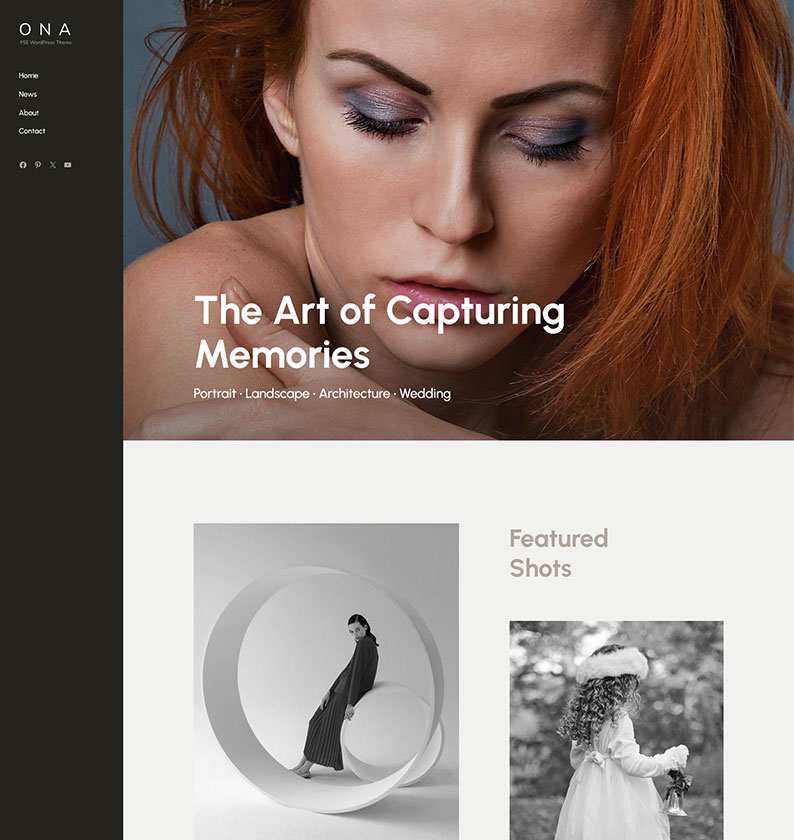
The Post Title Block allows for the display of the post’s title in a customizable manner.
Other useful blocks are the Featured Image and the Cover Block which fetches the post’s featured image dynamically.
These blocks offer a dynamic way to display content on your website, paving the way for more creative and innovative designs.
Step-by-Step: Editing Your WordPress Site with FSE

Having covered the basics of FSE, we now turn our attention to its practical application. This section offers a step-by-step guide on using FSE to edit your WordPress site, from maneuvering the Site Editor interface to altering site elements and preserving your changes.
Navigating the Site Editor Interface
FSE boasts a user-friendly Site Editor interface, packed with features to facilitate website editing. You can access the Site Editor by navigating to Appearance > Editor in the WordPress admin area.
The interface includes a navigation sidebar for making adjustments to individual block settings and a toolbar with various components for editing your website.
Saving Your Editor Changes
Once your edits are completed, it’s straightforward to save and apply them. Just hit the Save button to preserve your changes. To preview your changes before implementing them, you can click the View icon.

Enhancing Functionality with Advanced FSE Features
As your familiarity with FSE grows, you can begin exploring its advanced features to boost your website’s functionality. This section will cover how to create responsive designs and how to integrate FSE with popular plugins and page builders.
Creating Responsive Designs
A responsive design guarantees optimal website display across devices, from desktops to mobile phones. FSE provides tools to effectively manage layouts and spacing, allowing you to create a website design that adjusts to different screen sizes.
For example, starting from 6.1 the site editor incorporates fluid typography allowing your fonts to scale with the device size.
You can modify the padding option to tailor your layout and for more intricate layouts, FSE also provides a Layout Grid Block plugin that allows you to define responsive breakpoints and select columns within your layout.
Integrating with Plugins and Page Builders
You can augment FSE’s functionality by integrating it with popular plugins and page builders.
Page builders like Elementor and Divi integrate seamlessly with FSE, enabling you to leverage their advanced design capabilities in conjunction with the structural and editing features of FSE.
Transitioning to Full Site Editing: Tips and Best Practices
Though transitioning to FSE might seem daunting, with the right approach, it can be a seamless and gratifying process. This section will provide tips and best practices to help you prepare your website for FSE, overcome the learning curve, and utilize available resources to master FSE.
How to Switch from a Classic Theme to a Block Theme
If you’ve been using WordPress for a long time you are probably already familiar with classic themes. Since the introduction of Gutenberg and Full Site Editing many users have started switching to block themes.
First, make sure that your new block theme includes all the features that you’re currently using in a classic theme. If you have any custom CSS in the Customizer save it somewhere for later use. Your customizer will become inaccessible once you switch to a block theme. Don’t forget to backup your website before switching.
Preparing Your Website for FSE
Before getting started with Full Site Editing, it’s crucial to prepare your website. You should be running WordPress 6.0 or later for the best FSE experience (WordPress 6.7 is the latest release as of 2026). While FSE was technically available from 5.9, the editor has improved dramatically in the 6.x releases.
Then, you need to activate a full site editing theme to gain access to the Site Editor and other editing functionalities.
Learning Curve and Resources
While mastering Full Site Editing might require some learning, it shouldn’t be intimidating. With the right resources and consistent practice, you can overcome the learning curve and become proficient in FSE. Here are some steps to help you get started:
- Start by checking some beginner-friendly guides on navigating and using the WordPress Full Site Editor.
- Follow some reputable blogs and channels to keep learning.
- Practice regularly to improve your skills.
By following these steps, you can become more confident and proficient in using the WordPress Full Site Editor.
Resources such as guides and community support can enrich your learning experience and assist you in navigating complexities during the transition.
Full Site Editing and the WordPress Community
FSE has ignited significant discussion within the WordPress community. Its adoption among WordPress users is steadily growing, with users appreciating its user-friendly nature and the wide array of customization options it offers.
This section will examine FSE’s influence on the WordPress community, encompassing user adoption, feedback, and developer insights on FSE trends.
User Adoption and Feedback
FSE is gaining increasing adoption among WordPress users, who value its user-friendliness and extensive customization options.
However, as with any new feature, FSE has faced its share of criticism and challenges. Some users have expressed concerns about its intuitive editing experience and the value of learning it.
Despite the challenges, user feedback has played a crucial role in shaping the development of FSE by pinpointing areas for enhancement and collecting valuable insights from site builders.
Developer Insights on FSE Trends
Developer opinions on FSE have been diverse. Some see it as a revolutionary feature that will streamline site editing and enhance functionality, while others have voiced concerns and criticisms.
Here at DeoThemes, we believe that full site editing is a great addition and it is the future of WordPress, but it has to improve a lot. Development should focus more on the User Experience and usability.
At this point, the interface is too fragmented and requires a lot of thinking when navigating. Additionally, constant updates and UI changes confuse many users, and developers can’t keep up with them.
However, there is no denying that FSE has had a significant influence on website development trends, providing users with unparalleled control over the visual aspects of their websites and enabling them to create and personalize without requiring coding knowledge.
Summary
Full Site Editing is the future of WordPress. Its block-based approach to website editing, combined with a visual interface and advanced customization options, makes it a powerful tool for both beginners and experienced creators. With FSE, you can build and customize an entire website without writing code or relying on third-party page builder plugins.
If you’re ready to try Full Site Editing, the best way to start is by activating a well-designed block theme. Ona is a lightweight, feature-rich FSE theme with dozens of pre-built patterns, style variations, and starter sites that make it easy to get a professional website up and running quickly.
As WordPress continues to evolve through version 6.7 and beyond, FSE will only get better. Now is the perfect time to make the switch and take advantage of everything the Site Editor has to offer. Check out our guide to the best WordPress block themes to find the right starting point for your project.
Related Articles
- Best WordPress Block Themes for Full Site Editing
- Best Free Minimalist WordPress Themes
- Fastest WordPress Themes
- How to Add Adobe Fonts to WordPress
- Best Free Dark WordPress Themes
- How to Add Dark Mode to Your WordPress Site
Frequently Asked Questions
What is WordPress Full Site Editing?
WordPress Full Site Editing (FSE) is a block-based editing system that lets you customize your entire website, including headers, footers, templates, and global styles, from a single visual interface called the Site Editor. It was introduced in WordPress 5.8 and has matured significantly through WordPress 6.0 to 6.7, eliminating the need for separate page builder plugins.
How do I access the Site Editor in WordPress?
To access the Site Editor, you need a block theme activated on your site. Then go to Appearance > Editor in the WordPress dashboard. From there you can edit templates, template parts, global styles, and navigation.
What is the difference between a block theme and a classic theme?
A block theme uses HTML-based templates and a theme.json file for styling, allowing you to edit every part of your site visually in the Site Editor. A classic theme uses PHP template files and the Customizer for styling, limiting visual editing to the content area only. Block themes support Full Site Editing features like global styles, style variations, and template editing.
Do I need a page builder with Full Site Editing?
No. Full Site Editing provides built-in tools for creating layouts, customizing templates, and styling your entire site without a page builder plugin. Block themes like Ona come with dozens of pre-built patterns and style variations that replace the need for third-party page builders.
What are the best block themes for Full Site Editing?
Popular block themes for Full Site Editing include Ona (great for business, portfolio, and blog sites), the default Twenty Twenty-Five theme, and many more on WordPress.org. Look for themes with multiple style variations, pre-built patterns, WooCommerce support, and active development. Check our full guide to the best WordPress block themes for detailed comparisons and rankings.
Is Full Site Editing good for beginners?
Yes, Full Site Editing is designed to be beginner-friendly. The visual interface lets you see changes in real time, and you do not need any coding knowledge. Block themes come with pre-built patterns and style variations that give you a professional starting point. The learning curve is moderate, but most beginners can get comfortable with FSE within a few hours of practice.
Can I switch from a classic theme to a block theme without losing content?
Yes, your posts, pages, and media are preserved when switching themes. However, you should save any custom CSS from the Customizer before switching, because the Customizer is not available with block themes. It is also a good idea to backup your website before making the switch. Widgets and classic menus will need to be recreated using blocks.
What WordPress version do I need for Full Site Editing?
You need WordPress 6.0 or later for the best Full Site Editing experience. While FSE was technically available from WordPress 5.9, the editor has improved dramatically in the 6.x releases. WordPress 6.7 is the latest version and includes all the newest FSE features like the Font Library, fluid typography, and improved template management.